Understanding USB Cable Types: Data Transfer, Charging, and Device Compatibility
Choosing the right USB cable is important for keeping your devices connected, charged, and working properly. Although many cables look […]
Choosing the right USB cable is important for keeping your devices connected, charged, and working properly. Although many cables look similar, they can have different features, transfer speeds, and power capabilities. A USB C data cable, for example, can support both charging and file transfers, but not every USB-C cable offers the same performance. Understanding these differences can help you avoid connection problems and choose a cable that meets your needs.
What Is a USB Cable?
USB stands for Universal Serial Bus. It is a widely used technology that allows electronic devices to communicate, exchange information, and receive power. USB cables are commonly used with smartphones, computers, printers, cameras, keyboards, external storage devices, and many other electronics.
Over time, USB technology has developed to offer faster data transfer, improved charging capabilities, and better compatibility with modern devices. Different connector shapes and USB versions are available, so knowing their basic features makes choosing the right cable much easier.
Common Types of USB Connectors
USB cables come in several connector types. Each has a different design and is intended for particular devices.
1. USB Type-A
USB Type-A is one of the most recognizable connectors. It has a rectangular shape and is commonly found on desktop computers, laptops, wall chargers, and other electronic equipment.
It is frequently used to connect keyboards, mice, flash drives, printers, and external storage devices. Although newer connectors are becoming more common, USB-A remains widely used because many existing devices still support it.
2. USB Type-B
The USB-B connector has a nearly square shape with slightly angled upper corners. It is commonly used with printers, scanners, and some larger electronic devices.
Unlike USB-A, which is often connected to a computer or charger, USB-B is frequently found on the device itself. A typical USB-A to USB-B cable connects a printer to a computer, allowing users to print documents and transfer information.
There are also different versions of USB-B connectors, including standard USB-B and USB 3.0 Micro-B. They have different physical designs and should not be confused when purchasing replacement cables.
3. Micro-USB
Micro-USB was widely used in older Android smartphones, portable speakers, power banks, digital cameras, and other small electronics.
Its compact design made it suitable for devices where space was limited. However, it is gradually being replaced by USB-C because USB-C offers a reversible connector and supports more advanced features.
4. Mini-USB
Mini-USB is an older connector that was commonly used with digital cameras, MP3 players, and some portable devices.
Although it is less common today, users may still find it on older electronics. If you own an older camera or another device with a Mini-USB port, you may need a compatible cable to transfer files or charge the device.
5. USB Type-C
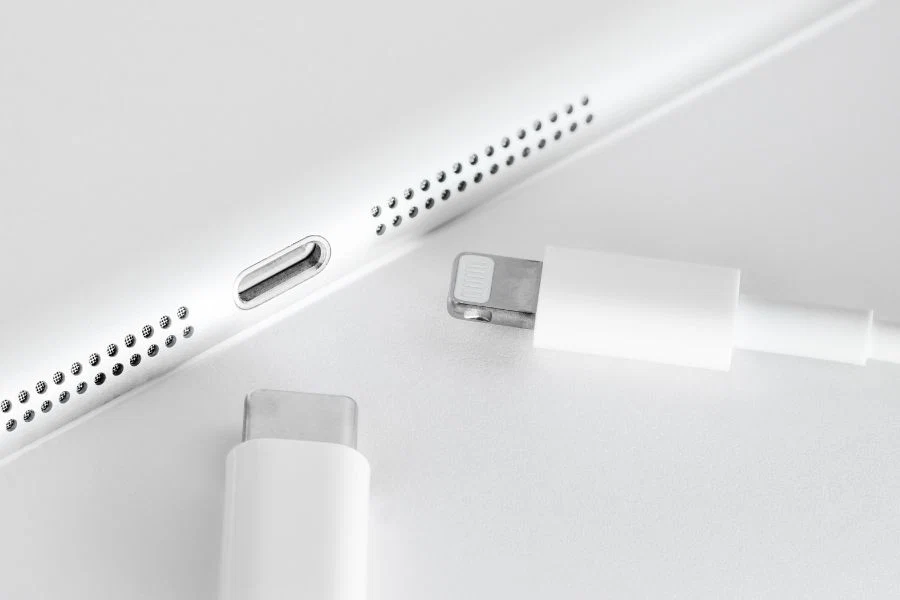
USB Type-C is one of the most widely used modern USB connectors. It has a small, oval-shaped design that can be inserted in either direction, making it more convenient than older USB connectors.
Many smartphones, tablets, laptops, gaming devices, and power banks now use USB-C. Depending on the cable and connected devices, it can support fast charging, high-speed data transfer, and video output.
However, it is important to remember that not every USB-C cable supports all these features. Checking the cable specifications before purchasing is essential.
Understanding USB Data Transfer Speeds
USB technology has evolved through several generations. Each generation offers different data transfer capabilities.
Here are some common USB standards:
- USB 2.0: Supports theoretical data transfer speeds of up to 480 Mbps. It is suitable for basic file transfers and everyday accessories.
- USB 3.0: Offers speeds of up to 5 Gbps, making it more suitable for transferring larger files.
- USB 3.1: Supports speeds of up to 10 Gbps, depending on the generation and configuration.
- USB 3.2: Can offer speeds of up to 20 Gbps with supported hardware and compatible cables.
- USB4: Supports speeds of up to 40 Gbps in common implementations, while newer USB4 Version 2.0 supports up to 80 Gbps.
Actual performance depends on the USB standard supported by the computer, connected device, and cable. Using a high-speed cable with an older device will not automatically increase its transfer speed.
Charging Cables vs. Data Cables
One common misunderstanding is that every USB cable can transfer files. In reality, some cables are designed primarily for charging and may not include the necessary internal connections for data communication.
Charging cables provide power to compatible devices, while data cables allow devices to exchange information. Many modern USB cables support both functions, but their charging power and data transfer speeds can vary.
For example, a cable might support fast charging but offer only basic USB 2.0 data transfer speeds. Another cable may provide faster file transfers but have different power delivery limitations.
Before purchasing a cable, check its specifications to make sure it supports the features you need.
How to Choose the Right USB Cable
Selecting a suitable USB cable involves more than checking its connector shape. Consider these important factors before making a purchase.
1. Check Connector Compatibility
First, identify the ports available on your devices. Make sure both ends of the cable match the connections you want to use. For example, a printer with a USB-B port may require a USB-A to USB-B cable.
2. Consider Data Transfer Speed
If you regularly transfer large videos, photographs, or documents, choose a cable that supports an appropriate USB standard. A higher-speed cable can save time when both connected devices support the same standard.
3. Check Charging Requirements
For smartphones, tablets, and laptops, check the cable’s supported power delivery. Make sure its power rating matches your device and charger requirements.
4. Look for Reliable Build Quality
A good cable should have durable connectors, quality insulation, and a strong outer covering. Braided cables can provide additional resistance to everyday wear, bending, and tangling.
5. Purchase from Trusted Manufacturers
Reliable manufacturers generally provide clearer product specifications and quality information. Choosing a properly rated cable can help ensure stable performance and reduce compatibility issues.
Final Thoughts
USB cables play an important role in connecting and powering modern electronic devices. From traditional USB-A and USB-B connectors to modern USB-C cables, each type serves different purposes. Understanding connector designs, data transfer standards, and charging capabilities can help you make a better purchasing decision.
Before choosing a cable, always consider your device compatibility, required transfer speed, charging needs, and product quality. A suitable USB cable can make everyday tasks easier while providing reliable connections between your electronic devices.

Written by Twastia Editorial Team
Twastia Editorial Team shares practical insights about website design, SEO services, Google Ads, content marketing, social media, conversion rate optimization, and digital marketing strategy.
Last updated: Nov 10, 2026
Related posts from Twastia
Explore more useful articles from twastia.com about digital marketing, SEO, websites, ads, content, and growth strategy.