Convert Voice Memos to Text: The Complete Guide to Audio Transcription
Learning how to convert voice memos to text is one of the simplest ways to boost your productivity and capture fleeting ideas […]
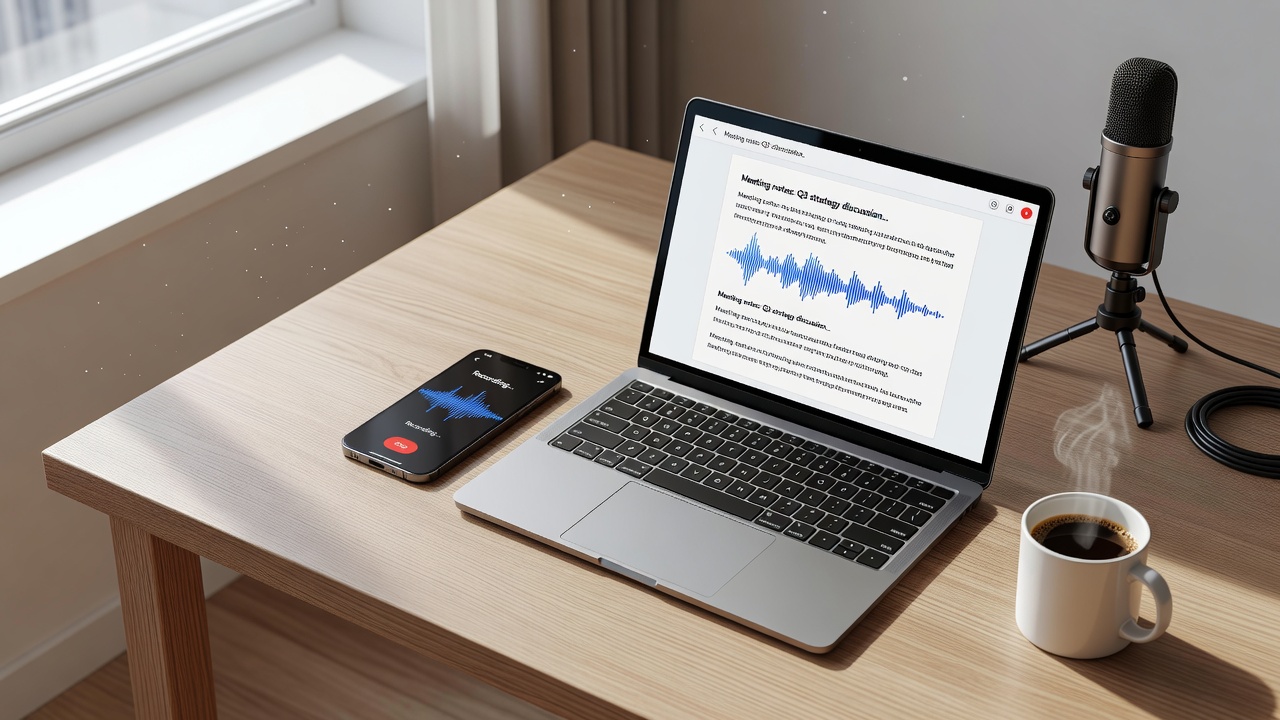
Learning how to convert voice memos to text is one of the simplest ways to boost your productivity and capture fleeting ideas before they disappear. We all speak faster than we type. Recording a quick voice memo on your smartphone is effortless. However, reviewing, organizing, and sharing those audio files can be cumbersome. When you convert voice memos to text, you transform unsearchable audio clips into editable, searchable, and shareable documents. Whether you are a student recording lectures, a journalist conducting interviews, or a professional dictating meeting notes, modern speech-to-text technology makes audio transcription faster and more accurate than ever. This guide will explore the best methods, tools, and tips to help you seamlessly turn your voice recordings into text.
Why You Should Convert Voice Memos to Text
Relying on a library of raw audio files limits your efficiency. Text is simply more versatile than audio. Here is why making the switch to written transcripts is essential.
Boost Productivity and Save Time
Listening to a 30-minute voice memo to find one specific detail wastes valuable time. Scanning a text document for that same detail takes just seconds. By using an audio-to-text converter, you eliminate the need to replay recordings repeatedly. You can quickly review your notes, extract key points, and move on to your next task.
Enhance Accessibility and Searchability
Text is universally accessible. It allows individuals who are deaf or hard of hearing to consume your audio content. Furthermore, text is searchable. When you transcribe voice memos, you can easily index your notes in cloud storage platforms like Google Drive or Notion. You can use keyword searches to find exactly what you need across hundreds of documents instantly.
Share Ideas Seamlessly
Sending a long voice memo to a colleague or client is often inconvenient. They may not have the time to listen, or they might be in a quiet environment where playing audio is impossible. Sharing a clean, formatted text document respects their time and ensures your message is communicated clearly and immediately.
How to Convert Voice Memos to Text: 3 Effective Methods
There are three primary ways to tackle audio transcription. The best method depends on your budget, the volume of your recordings, and the accuracy you require.
Method 1: Built-In Voice-to-Text App Features
The easiest way to start is with the software already on your phone. Both Apple and Android devices have robust dictation software built into their keyboards.
- Apple Dictation: If you use an iPhone, you can use Apple’s built-in speech recognition. Open any app that accepts text (like Notes or Pages). Tap the microphone icon on the keyboard and start speaking. Your words will appear as text in real time.
- Google Voice Typing: Android users can leverage Google’s powerful voice recognition. Open a Google Doc or any text field, tap the microphone icon on the keyboard, and dictate. Google’s AI transcription is highly accurate and handles multiple languages well.
Pros: Free, no extra downloads, real-time conversion.
Cons: Requires you to speak live into the device; cannot process pre-recorded audio files.
Method 2: AI Transcription Software
If you have existing voice memos that you need to transcribe, dedicated AI transcription software is your best option. These tools allow you to upload audio files and receive text transcripts in minutes. They use advanced voice recognition and natural language processing to deliver highly accurate results.
Pros: Processes pre-recorded audio, handles multiple speakers, adds timestamps and speaker labels.
Cons: Often requires a paid subscription for heavy use.
Method 3: Human Audio Transcription Services
AI is impressive, but it is not perfect. Heavy accents, complex industry jargon, or poor audio quality can confuse even the best algorithms. For 100% accuracy, human transcription services are the gold standard. You upload your audio, and a trained human transcriber types it out.
Pros: Near-perfect accuracy, handles poor audio and heavy accents flawlessly.
Cons: Expensive and slow. Turnaround times range from a few hours to a few days.
Top Tools to Convert Voice Memos to Text
Choosing the right software can be overwhelming. Here are the most reliable and popular tools available today to help you convert voice memos to text.
Otter.ai: Best for Meetings and Live Transcription
Otter.ai is a powerhouse for real-time AI transcription. While it excels at live-transcribing Zoom calls and in-person meetings, you can also import existing audio files. Otter generates a searchable transcript, identifies different speakers, and creates automatic summaries. It integrates seamlessly with calendar apps to automatically join and record your scheduled meetings.
Rev: Best for High-Accuracy Needs
Rev offers both AI and human transcription services. Their AI transcription is fast and affordable, perfect for good-quality recordings. If you have a challenging audio file with heavy accents or legal jargon, you can upgrade to their human transcription service. Rev guarantees 99% accuracy with human transcribers, typically returning documents in under 12 hours.
Descript: Best for Content Creators
Descript is an all-in-one audio and video editing tool. You upload your voice memo, and Descript transcribes it automatically. The magic lies in the editing interface: you edit the audio by editing the text document. If you delete a sentence in the transcript, Descript removes that audio segment automatically. It is a game-changer for podcasters and video editors.
TurboScribe: Best for High Volume on a Budget
TurboScribe is an AI transcription tool that offers immense value. Their unlimited tier allows you to transcribe up to 30 files a day, each up to 3 hours long, for a flat monthly fee. It supports over 100 languages and provides speaker recognition, making it ideal for students and researchers with large archives of voice memos.
Step-by-Step Guide: How to Transcribe Voice Memos Easily
If you have a voice memo saved on your phone and want to use an AI tool to transcribe it, follow these simple steps.
- Export the Voice Memo: On an iPhone, open the Voice Memos app, tap the three dots on your recording, and select “Save to Files” or “Share.” On Android, open the Recorder app and tap “Share” on your chosen recording.
- Choose Your Transcription Tool: Open your preferred AI transcription platform (like Otter.ai or Rev) on your computer or mobile browser.
- Upload the Audio File: Click the “Import” or “Upload” button. Select your exported voice memo from your phone’s storage or cloud drive.
- Wait for Processing: AI engines usually process files at a ratio of 1:10. A 10-minute voice memo will take about 1 minute to transcribe.
- Review and Edit: No AI is flawless. Read through the generated text to correct minor errors, especially with proper nouns or homophones (e.g., “there” vs. “their”).
- Export the Text: Download your transcript as a PDF, DOCX, or TXT file, or copy and paste it directly into your notes app.
Tips to Improve Your Speech-to-Text Accuracy
Even the most advanced audio-to-text converter needs a little help. Use these best practices to ensure your transcripts are as accurate as possible.
Optimize Your Audio Quality
Garbage in, garbage out. AI transcription engines struggle with background noise and echoes. Record your voice memos in a quiet room. Get close to your phone’s microphone. If you record frequently, invest in a cheap lavalier (lapel) microphone that plugs into your phone’s charging port. Clear audio drastically improves transcription accuracy.
Speak Clearly and Use Punctuation Commands
Mumbling or speaking too quickly will result in messy text. Enunciate your words clearly. If you are using live dictation software, learn the punctuation commands. For example, saying “period” or “comma” will force the software to insert the correct punctuation, saving you from heavy editing later.
Minimize Cross-Talk
If you are recording a conversation or meeting, try to ensure only one person speaks at a time. Overlapping voices (cross-talk) confuse AI models, often resulting in omitted words or merged sentences.
The Future of Voice Recognition and Audio-to-Text Converters
The technology behind speech-to-text is evolving rapidly. We are moving toward real-time translation, where you can speak in English, and the software will instantly transcribe the text in Spanish. Context-aware AI is also improving. Future tools will better understand complex industry jargon, local slang, and conversational cadence without requiring human correction. As voice recognition becomes embedded into wearables and smart glasses, dictating notes and converting them to text will become a seamless part of our daily workflows.
Conclusion: Convert Voice Memos to Text for Better Productivity
Audio files are cumbersome, unsearchable, and hard to share. When you convert voice memos to text, you unlock the true value of your spoken ideas. By leveraging modern AI transcription tools, you can transform hours of audio into editable documents in just minutes. Whether you use free built-in dictation software on your phone or invest in a powerful platform like Otter or Rev, the ability to quickly transcribe voice memos will revolutionize how you capture and process information. Start using an audio-to-text converter today, and never let a brilliant idea get lost in a sea of voice recordings again.
Frequently Asked Questions (FAQs)
1. Can I convert voice memos to text for free?
Yes, you can use built-in keyboard dictation on iOS and Android for real-time transcription, or use free tiers on apps like Otter.ai for pre-recorded audio.
2. What is the best app to transcribe voice recordings?
Otter.ai is best for meetings and live capture, Rev is best for high-accuracy human transcription, and Descript is best for audio/video editing workflows.
3. How accurate is AI transcription software?
Modern AI transcription is highly accurate (typically 90-95%) for clear audio, but it can struggle with heavy accents, complex jargon, or poor background noise.
4. Can I transcribe a voice memo on my iPhone?
Yes, you can use Apple’s built-in dictation for live speech, or export your voice memo file to a third-party app like Rev or Otter.ai for transcription.
5. How long does it take to transcribe a 10-minute voice memo?
AI transcription engines typically process audio 10 times faster than real-time, so a 10-minute voice memo will take about 1 minute to convert to text.
6. Does AI transcription work with multiple speakers?
Yes, advanced AI transcription software uses speaker diarization to identify and label different speakers within a single voice memo automatically.

Written by Twastia Editorial Team
Twastia Editorial Team shares practical insights about website design, SEO services, Google Ads, content marketing, social media, conversion rate optimization, and digital marketing strategy.
Last updated: Aug 11, 2026
Related posts from Twastia
Explore more useful articles from twastia.com about digital marketing, SEO, websites, ads, content, and growth strategy.